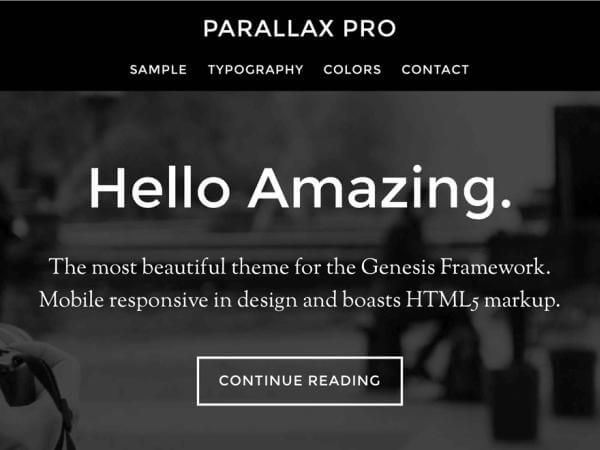
The following question about the Parallax Pro child theme from Studiopress was asked on the Studiopress Forum the other day:
I want to keep the sticky header as it is, but would like to hide the site title when you land at the top of the homepage, but have it appear as soon as the user starts to scroll down. Likewise, I’d like it to disappear again when you get back to the top of the homepage.
My initial, albeit not very detailed, answer was to use jQuery.
According to jquery.com, jQuery is a fast, small, and feature-rich JavaScript library. It makes things like HTML document traversal and manipulation, event handling, animation, and Ajax much simpler…
In other words, with jQuery it is fairly easy to change the look or behaviour of a website or, like in this case, part of a website.
An example of jQuery in action is the magical appearance of the responsive menu on mobile devices or when you make your browser window smaller while the regular menu disappears.
When you think about it, the question asked on the forum, is about a similar behaviour as the responsive menu: A change in the browser triggers a change in the way the website looks.
Let’s summarize what is supposed to happen:
- On page load the site title is hidden.
- When you start scrolling down, the site title appears,
- and is visible until you scroll all the way back up.
This is not an introduction to jQuery, therefore I won’t go into details of how and why the following snippet works.
jQuery(function( $ ){

$( '.site-title a').hide();

$( document ).on('scroll', function(){

        if ( $( document ).scrollTop() > 0 ){
            $( '.site-title a' ).show();
        } else {
            $( '.site-title a').hide();
        }
    });
});
Ok… you’ve got the code.
How can you get WordPress to use it?
- Create a new text file and paste the code into it.
- Save the text file and rename it to hide-site-title.js
(Confirm that you want to change the file extensions) - Using FTP, the File Manager in cPanel or however your host let’s you upload files to your server, transfer your new file to /wp-content/themes/parallax-pro/js/
Ok. so far so good. But if you refresh your browser window you will see… nothing changed!
What’s wrong with the code????
Nothing is wrong with the code.
You just have to tell WordPress to use the new file.
- Open the functions.php in a text editor and find the following section:
//* Enqueue scripts and styles
add_action( 'wp_enqueue_scripts', 'parallax_enqueue_scripts_styles' );
function parallax_enqueue_scripts_styles() {
    wp_enqueue_script( 'parallax-responsive-menu', get_bloginfo( 'stylesheet_directory' ) . '/js/responsive-menu.js', array( 'jquery' ), '1.0.0' );
    wp_enqueue_style( 'dashicons' );
    wp_enqueue_style( 'parallax-google-fonts', '//fonts.googleapis.com/css?family=Montserrat|Sorts+Mill+Goudy', array(), CHILD_THEME_VERSION );
}
- Replace it with:
//* Enqueue scripts and styles
add_action( 'wp_enqueue_scripts', 'parallax_enqueue_scripts_styles' );
function parallax_enqueue_scripts_styles() {

    wp_enqueue_script( 'parallax-responsive-menu', get_bloginfo( 'stylesheet_directory' ) . '/js/responsive-menu.js', array( 'jquery' ), '1.0.0' );
    wp_enqueue_script( 'parallax-hide-site-title', get_bloginfo( 'stylesheet_directory' ) . '/js/hide-site-title.js', array( 'jquery' ), '1.0.0' );
    wp_enqueue_style( 'dashicons' );
    wp_enqueue_style( 'parallax-google-fonts', '//fonts.googleapis.com/css?family=Montserrat|Sorts+Mill+Goudy', array(), CHILD_THEME_VERSION );

}
- Save functions.php
Refresh your browser and watch the magic happen 😉
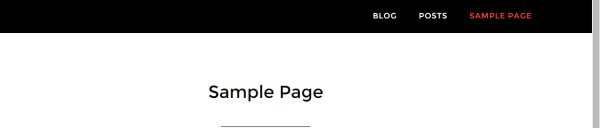
This is what it should look like after you refresh the browser.
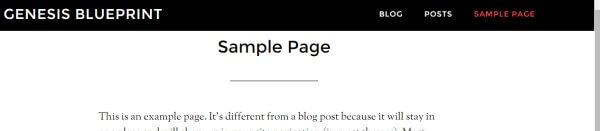
And it should look like this when you start scrolling down:
If you want the site title to appear only after you have scrolled down a little further, you can increase the value of 0 in the jQuery snippet.


Hi,
great tip, Works a treat and your instructions really easy to follow.
Wondered though if it is possible to tell it to only do that on the homepage?
Hope you can help.
Hi,
thank you for your kind words.
In step 5, you can wrap the wp_enqueue_script in a conditional:
if( is_front_page() ) {
wp_enqueue_script( ‘parallax-hide-site-title’, get_bloginfo( ‘stylesheet_directory’ ) . ‘/js/hide-site-title.js’, array( ‘jquery’ ), ‘1.0.0’ );
}
How might one remove the page title on the blog page so that it only displays the posts and not display “BLOG” at the top with the border at the top and bottom of it? It’s such a waste of good space; I’ve installed plugins that should toggle the page title, but that doesn’t work. I’ve also inserted every bit of code I could find to remove the page title and it removes it from all pages EXCEPT the page designated for the blog. Any suggestions?
Disregard 🙂 I got it!